Top100 Tech Lab may earn a commission from qualifying purchases when affiliate tracking is active. This never changes what you pay or how we frame our advice. Read the full disclosure.
Put timers, recipes, and family calls where hands are busy without turning the kitchen into another surveillance surface.
A real-life starting point
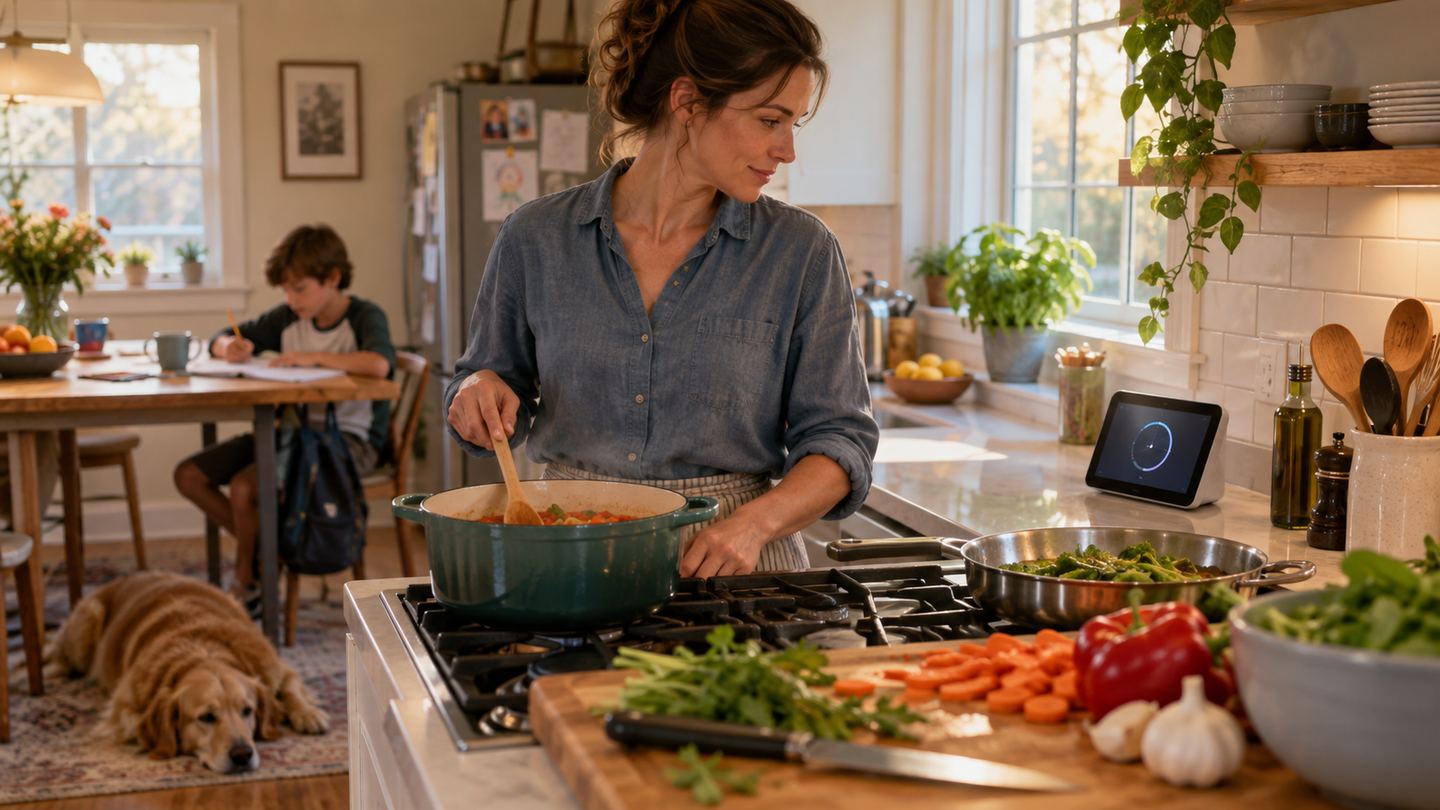
A cook has flour on both hands and wants to restart a timer while following a recipe. A smart display can be helpful, but a tiny screen across the room may not be readable and a voice assistant that misunderstands noisy kitchen speech can frustrate.
The device may also show photos or take calls. That changes placement and privacy decisions, especially in a shared household where not everyone wants a camera facing the room.
Three useful buying paths
These are practical search directions rather than fixed winners. Product versions, sellers, availability, and prices change, so verify the current listing against the checklist below.
Compact smart display
Takes little space for a simple cooking routine.
Medium smart display with camera controls
More readable instructions and video options when desired.
Display matching existing smart-home ecosystem
Avoids fragmented device and account controls.
Amazon availability and prices can change at any time. Match the full model, included accessories, seller, and return terms before ordering.
What matters before you buy
Counter placement
Keep the device away from steam, splashes, and hot surfaces, with a safe power route.
Readability
Check text size and viewing angle from the real prep area.
Voice and touch
Hands-free commands help, but physical touch and manual timer fallback should remain easy.
Privacy
Camera shutter, microphone mute, account controls, and guest access deserve deliberate setup.
Services
Recipe, music, calendar, and call support varies by platform and region; verify the apps you already use.
How to make the choice
Try a phone or tablet on the planned counter spot to test sightline. Make a list of the three kitchen tasks that need hands-free help. If none requires a screen, a simpler speaker or ordinary timer may be enough.
If you choose a display, configure camera and microphone controls with household agreement, limit personal calendar exposure, and label the power cable. The useful first setup is a timer and one reliable recipe source, not dozens of novelty routines.
Your five-minute pre-purchase check
- Write down the exact devices, room, and routine the product must support.
- Open the manufacturer documentation for the precise model or regional variant.
- Price required cables, mounts, subscriptions, consumables, or adapters.
- Confirm seller identity, warranty route, delivery contents, and return window.
- Save the listing details you relied on because marketplace pages can change.
Common mistakes to avoid
- Buying too small a screen for the prep distance
- Placing electronics beside steam or splashes
- Ignoring camera and guest privacy settings
Buy for the routine, not the headline
A smart display is worth its counter space when the household regularly uses visible recipes or calls. For timers alone, consider a simpler device.
Frequently asked questions
Do all recipe apps work on smart displays?
No. Check the exact platform and region for the services you use.
Can I disable the camera?
Controls vary. Prefer a clear physical shutter or equivalent documented privacy option when camera use is optional.
How this guide was prepared
Top100 Tech Lab organized this guide around a real purchasing situation, the capabilities commonly documented for this category, compatibility checks, and the costs that often appear after checkout. We do not present manufacturer claims as independent measurements, and we do not invent personal test results. When a listing conflicts with official documentation, use the manufacturer’s exact model information and contact the seller before buying.